


Your team should have clearer answers to the file questions that slow people down:
When those answers are clearer, people spend less time searching, duplicating, emailing attachments, and saving side copies.
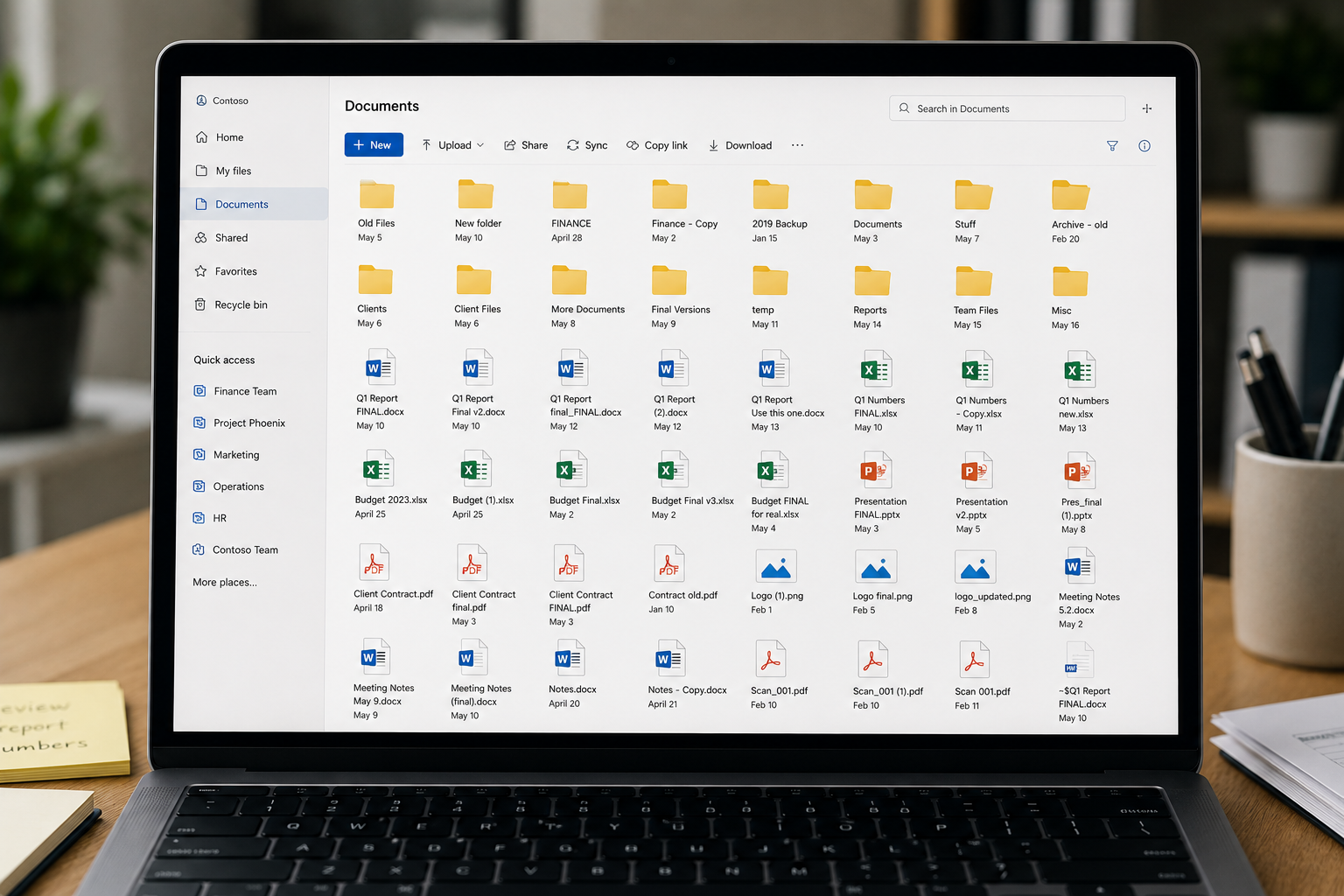
Most file projects leave your team staring at hundreds of folders and trying to decide what goes where.
AP Logic gives you a stronger starting point. Using templates, AI-supported tools, and hands-on guidance, we help map your current file environment into a SharePoint structure your team can review, refine, and use.
You stay in control of the decisions that matter without having to sort every folder alone.

Start with proven file structures instead of designing everything from a blank page.

Use AP Logic’s tools to help organize file decisions.

Work with AP Logic to make practical decisions around ownership, permissions, archive areas, and what belongs in daily work.
Most organizations don't have files in one neat location.
They may be in SharePoint, OneDrive, Teams, file servers, desktops, email, Google Workspace, or older storage areas.
AP Logic helps bring those locations into one organized plan so your team knows what belongs where, what should stay active, and what should move out of daily work.
Organized document libraries for shared files and team reference material.
Defined boundaries between personal storage and shared organizational work.
File areas that support collaboration without creating another disconnected storage location.
File servers, desktops, email, Google Workspace, and older storage areas that need to be reviewed before content moves forward.
Defined responsibility for who owns each file area and who should have access.
Decisions about what stays active, what gets archived, and what no longer needs to crowd daily work.